


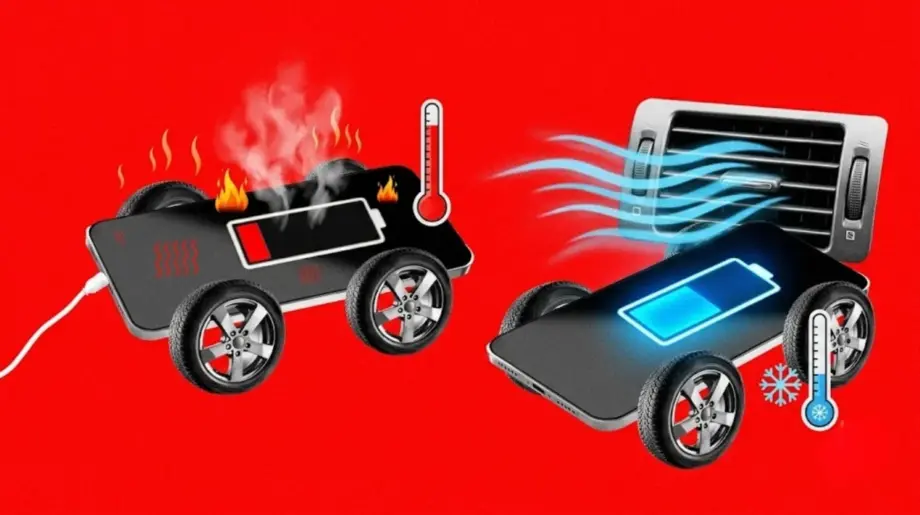
Navigation, charging and a sun-heated cabin can leave your phone struggling to cool down. A few changes to placement and usage can help reduce the load.
A phone connected to Apple CarPlay or Android Auto is still doing work, even when you interact mainly with the dashboard.
Navigation, audio playback, network connections and charging can operate together throughout a journey. Add direct sunlight or a hot cabin, and the handset may become noticeably warm.
Some warmth during use is normal. Persistent overheating, temperature warnings or repeated shutdowns deserve attention.
Apple identifies prolonged navigation in hot conditions as a situation that can raise device temperature. Google similarly lists extended navigation and demanding activity while charging among the conditions that can overheat a Pixel.
The useful starting point is to reduce heat sources one at a time. Make adjustments before departure or after parking safely.
1. Move the phone out of direct sunlight
Start with placement rather than a settings change.
A handset sitting beneath the windscreen can receive heat from the sun while generating its own. Moving it to a shaded, secure position gives it a better chance to cool.
Choose somewhere with ventilation. A closed glovebox may provide shade, but it can also trap warm air. Google specifically advises against keeping a phone in enclosed or poorly ventilated areas.
Keep the phone and cable away from pedals, gear controls and airbags. Do not leave the handset in a parked vehicle that will heat up in the sun.
2. Separate wireless projection from wireless charging
Wireless CarPlay or Android Auto and wireless charging are different functions. Using wireless dashboard connectivity does not require placing the phone on a charging pad.
If the phone becomes hot on the pad, remove it and compare behaviour without charging, provided there is enough battery for the journey.
If your vehicle supports wired projection, a compatible USB data cable is another configuration worth testing. It is not a guaranteed cooling fix: the USB connection may also charge the phone.
Change one variable at a time so you can distinguish a placement problem from a charging or connection problem.
3. Use charge limits where supported
A supported charge limit can reduce the time a phone spends near a full battery. It should not be treated as a temperature-control switch or a guarantee that charging will stop generating heat.
On supported iPhones—iPhone 15 models and later—Apple places the setting under Settings → Battery → Charging, with limits selectable between 80% and 100%.
Android charging controls differ by manufacturer and model. Search your phone’s settings for options such as charging optimisation, battery protection or charge limit, then check the manufacturer’s instructions.
If the phone is already overheating, allowing it to cool takes priority over adjusting its target battery percentage.
4. Download navigation and entertainment before leaving
Downloading maps, music and podcasts beforehand can reduce the need to retrieve that content during a drive. It does not eliminate navigation processing or guarantee a cooler phone.
In Google Maps, open your profile menu, select Offline maps, then choose Select your own map and download the required area.
Make sure the saved area covers the entire journey. Google says offline driving guidance requires the route to remain within the downloaded map. Live traffic information and alternative routes are unavailable when driving offline.
Apple Maps also supports offline map downloads in supported areas. Availability and features vary, so check coverage before relying on them.
Download and test your content while parked, rather than discovering a missing map after losing reception.
5. Reduce unnecessary phone activity
If the dashboard provides the navigation interface you need, avoid leaving the phone’s display illuminated unnecessarily.
Also postpone large downloads, backups, video recording and hotspot use where practical. Google identifies several of these activities as potential contributors to elevated phone temperature.
Airplane mode is not a universal CarPlay or Android Auto cooling setting. It can interrupt communications and connectivity, and wireless projection depends on the required wireless connections remaining available.
Apple’s wireless CarPlay setup requires Wi-Fi, while Google specifies compatible Wi-Fi capability for wireless Android Auto. Do not disable those connections and assume dashboard features will continue unchanged.
6. Check whether the case contributes to charging heat
A case may affect how readily a handset sheds heat.
Apple recommends removing an iPhone from its case if it becomes hot while charging. Try this while parked, then secure the phone appropriately before continuing.
Keep charging accessories compatible and in good condition. If an accessory becomes unusually hot or shows visible damage, stop using it and follow the manufacturer’s guidance.
What to do when a temperature warning appears
A warning is a reason to stop adding workload, rather than repeatedly reconnect the phone.
Park safely, disconnect charging and move the device to a cooler, shaded place. Allow it to cool before resuming use. Apple advises turning off an overheated device and letting it cool; Google advises disconnecting power and avoiding use until a hot Pixel cools down.
Do not use ice, a freezer or water to force rapid cooling.
If warnings or shutdowns keep returning in a cool environment, contact the phone manufacturer rather than assuming CarPlay or Android Auto is the sole cause.
A simple comparison can identify the main trigger
Once the phone has cooled, compare configurations on a later journey:
| Pattern | First change to test |
|---|---|
| Heat builds beneath the windscreen | Move to a shaded, ventilated position |
| Heat increases on the charging pad | Compare without wireless charging |
| Heat continues with a USB connection | Check charging behaviour and phone workload |
| Problems appear during heavy background activity | Pause nonessential tasks |
| Warnings recur despite cooler conditions | Seek manufacturer support |
These are troubleshooting steps, not a diagnosis.
The aim is to avoid stacking unnecessary demands on the handset. A cooler location, fewer background tasks and a charging setup suited to the journey are more useful than relying on a single setting.
Editorial note: This guide draws on Apple and Google support documentation. TechLayers has not conducted comparative temperature testing across phones, vehicles or charging accessories.